Monday, 9 October 2017

How To Share Internet Connection From Computer to Other Computers or Devices Using WiFi

It is common to share internet using mobile phones hotspot but you can share your Internet connection from your computer to other devices like other computers, and phones.

There are some few steps to be followed to achieve the task. The instructions posted here are basing on windows OS.

In order to share internet from laptop, laptop must have been enabled with WiFi which will act as a virtual router.

Your computer must have connected to the internet via modem or any other device which can connect your computer to the internet.

First, A wireless network must be created. This network is the one that will be used to share internet connection to other devices.

To create the wireless network in Microsoft windows just open command prompt (CMD) as an administrator.

To open CMD  click the start button and search for the word "cmd" then right click and run the cmd as an administrator.

Now it is a time to write some commands which will help to create a hosted network in your computer for wireless connection with other devices.

Type the following command without quotation "nesth wlan set hostednetwork ssid=yourname mode=allow key=yourpassword"

This command creates the network named yourname and the password that will be inserted by other device to get the access to this network is yourpassword.

Other devices will be able to connect with your computer using this network. Unfortunately our new created network does not have internet connection.

We need to connect this network with internet. Since your computer has internet connection you will have to do some settings so that you can share your internet connection.

On Task bar find the internet connection icon and right click and then click network settings and sharing, a new window will come out, on the left hand side find place written change adapter settings, a new window will appear showing different devices including your modem.

Right click modem and click property then you will see another tab of sharing select the tab and allow the connection to share with other network.

You will choose wireless connection that you created earlier, These steps have created internet sharing from your laptop or computer.

Now go back to command prompt and write the following command without quotation "netsh wlan start hostednework"

If you want to stop this network write this command "netsh wlan stop hostednetwork"

In order other people to access this network they must know the password of this network otherwise they will not be able to get the access of the internet from this wireless network. 

There are other software designed to simplify this task and you will not have to follow all the steps posted here, there software are like connectify hotspot, virtual router and many other. 

Sunday, 8 October 2017

How To Record Screen Video on Android Phones Using Some Powerful Apps

Sometime you may need to record android screen video for giving visual instructions on the particular events but you may not have a good camera for recording but also the camera might not give good visualization.

These issues can be solved by using some android applications which record your screen as video. These apps record the screen and save them as video. This gives clear and good video which is easy for someone to view and understanding what is being instructed.

One among the good apps for screen recording is Du Recorder, this is a free app which is available on android play store.

In order to record the screen using Du Recorder you need to perform the following steps, first make sure Du Recorder has been installed in your phone.

Launch the application and the option for starting recording will appear on top part of your screen. In this part the application will ask to tap it so that you can start record the screen.

When you tap the alert will come out notifying you that the entire screen will be recorded, you will have to accept since you need to record it.

Then the steps are now completed and the application is recording everything you do on your android phone screen. 

If you want to stop recording the screen just scroll down the top part of the screen and click stop on the DU recorder app, other option that you will see are delete the video, play the video and save the video.

The application gives very clear video with high quality, It is good if you can make the edition on your videos, because sometimes you may need to omit or add some portions on your videos.

There are so many application out there which can perform this task but Du Recorder is the best among them and it is free from ads, In Du Recorder you can shake your phone for stopping recording the screen.

For these who need to give someone instruction it is recommended to use this application rather than using third part camera. If you use the camera of another phone the video can be of low quality and might annoy people who watch your videos.

If you do not like the application you can try to use other apps which available on android play store. keep research on many apps which perform the same task because some of the apps contain many features and other has very limited features.

Saturday, 7 October 2017

Learn How to Livestream Yourself By using Laptop WebCam Via VideoLan(VLC) Player

VLC media player is an open source software which allows people to live stream different media including videos, audios and also you can create live streaming using webcam of your laptop and other device connected with your laptop can see you.

Also If your computer has microphone you can make other people hearing your voice live using VLC media player.

There are some few procedures to be followed in order to live streaming yourself using either webcam for video streaming or  microphone for voice streaming.

The first important thing your laptop must have camera and microphone if you need to live streaming yourself otherwise you won't be able to go live using VLC.

Another requirement The VLC must be installed on your computer and other laptops or phones want to see your video or listening to your voice live.

The network using wifi hotspot must be created. Other devices want to see your livestreaming must be connected to this network.

You can google to get the information on how to create WiFi hotspot on Laptop. Alternatively you can use the hotspot available on your phone.

Lets go and see how we can create a livestreaming using your webcam and microphone of laptop(PC). 

Launch VLC software from your computer, On the menu click media and you will find different options for our intended purpose you will have to click open Capture Device or in shortcut hold ctrl button and click C button.

The window having different options will appear. The first row there is option of selecting the device. In case you want to stream video of yours from laptop camera, then you should choose video camera and VLC will open your laptop camera.

In case you want streaming only your voice you will choose microphone from the given menu. Then you will see play button having drop down menu arrow, click the arrow and choose stream.

A new window will come out showing the description and source of streaming device, click next and the window with HTTP setup will appear choose Http and click add.

There is port number you can change it or leave it, it is your option. On the Path field do not fill anything.

Click next, Then transcoding option will appear and uncheck transcoding option, click next then stream. The setup for streaming is over. Devices need to see the streaming must be connected to the same network.

Therefore these devices must know your IP address of your computer. How can you identify the IP address of your computer? well if you use windows OS open command prompt and type this command "ipconfig /all" you will see your IP address.

The other devices will insert this IP address in their VLC software or app but opening the stream and insert the address in this format "your_ip_address:port" for example 112.444.222.111:8080


Friday, 6 October 2017

How to Convert MP4 or Any Video File To MP3 Using VLC Media Player

If you have VLC software installed in your computer you don't need additional software to convert mp4 or any video file to mp3 audio.

VLC has many tools which perform different tasks and one among them is audio converting from any video. It is easy to convert video to audio using VLC. All you need is having VLC software installed in your computer.

The procedures follow few steps and they can be applied to all operating system. But this feature  of converting videos is not available on vlc app for android therefore the procedures which are going to be explained on this post are basing on PC. The PC can use Linux/Windows/Mac.

Starting converting video file to mp3 just Open VLC software and on the top bar of VLC there is menu which involves Media,   Playback, Audio, Video, Subtitle, Tools, Views and Help, you should select Media and you will see a drop down menu which involves other commands for performing various tasks.

These commands include open file, open multiple files, open disk, open network stream, stream, convert and save and many other commands, for converting you will have to select "convert/save". After clicking the new dialog will appear needing to add the video file to convert.

Choose video file that you want to convert by clicking add button or you can drag and drop the video file. Then click convert/save button the next dialog with different options to select will appear, the dialog involves source of file selected, settings and the destination place of your output file.

On the setting part leave other parts unchanged but on profile part there is drop down menu having many options. Click and select  Audio-MP3 since the video file is supposed to be converted to MP3 file.

The additional setting is required to accomplish the task of converting video file to mp3 because if you will decide to convert as it is, the file wont play accordingly. Next on drop down menu there is icon of setting click it and another dialog with options of Encapsulation and others will appear,

Here we will select encapsulation part. There are so many options required to select only one option on this part. Click WAV for encapsulation and save.

Now the final step is here. In this part the destination file name will be assigned, give a name the output file. The name should be in this format "name_of_the_file.mp3" and locate the destination folder.

Then click convert/save and video will be converted to mp3 audio. Make sure repeat options on VLC are off if they are turned on the file will be converted frequently.


Friday, 29 September 2017

How to Download Videos and Audios on Your Android Phones From Any Website

There are many ways to use for downloading audios and videos on your Android phones. You can download the audios or videos by using applications and some website designed for that task.

One of the useful android application for downloading youtube videos is tubemate which is available on their official website.

This application is not available on google play store, you can search the app through any search engine like google.

When you download the application launch the app  and accept the terms and conditions that will be asked by the app. After then you will see the some videos from youtube. In order to download the video play a video you want to download. On the top of tubemate bar there is downloading icon which is green in color shown by downward arrow.

Once you  play video the icon will shake indicating it is ready to download the video therefore you will have to click. When you click, the menu showing different videos formats will appear. You will select the format you want.

This is one of the method to download videos from youtube but another way to download videos from any video website is by using vidmate. It is a good application to download any video from any website that have videos like dailymotion and others.

Just open the application and enter your video URL or you can search the video you want. The procedures are similar  with tubemate. Yuo will have to play the video you want once the video starts playing the downloading icon will appear and you will click the icon to download the video you want.

The good thing is that the application is flexible and it can download any video from any website. although the pop up ads might annoy to use the app for downloading the video but so far so good the app is the best for video downloading.

Videos from youtube specifically can also be downloaded by other alternatives method like savefromnet website. This is simplest method to download youtube videos. You will have to do the following in order to download videos using this platform.

Open any browser and enter youtube address then search video you want to download when you find it play the video, then go to the address bar of your browser after www. add "ss" letters for example www.youtube.com/xv625z become www.ssyoutube.com/xv625z then Enter and you will be directed to savefromnet website. you will see different video formats of your video and will choose the suitable one for you.

In android you can download mp3 files from any website. There are number of apps which specifically designed for that purpose, some of them include music paradiso pro, SuperCloud Song MP3 downloader, 4shared, Hungama Music, Tunee, Skull mp3 Music downloader, tubidy website and many others. Just keep doing research to get the best app for mp3 downloading

How To get Salt From the Ocean or Sea Water and You Use It for Commercial Purpose

If you want to get salt from the ocean you can do it by yourself by using various methods. You can get salt from the ocean water by Boiling the water, using evaporation, using reverse osmosis and decanoic acid.

This post will try to show how you can collect salt through using mentioned methods. Water must be collected from the place with less pollutant.

Collecting Salt By Boiling water, when water is boiling its vapor come out and the salt will remain down. This is most useful and simple method which applied to collect salt from ocean. Therefore when water is boiled off the remaining particles on the pan will be salt.

Then you can take out your salt for other uses. The precaution should be taken because this might not be able to remove other unwanted particles which can harm people who use your salt. Extra checking is needed to ensure the safety of your salt product and hence could not harm anyone who use the product.

For quick processing there is a need to have source of heat which will give water  enough heat for boiling. If there is no enough heat it will take time to get salt from the ocean water.

This method is less expensive and it can be applied by anyone who want to create salt by himself.

Apart from the boiling method a salt from ocean water can be obtained by evaporation. Evaporation uses the same procedures as distillation(boiling) but evaporation has the slow rate. 

Evaporation can be done by using the sun or any other source of heat. To accomplish this just follow the following procedures.

Take a clean pan and pour salt water on your pan the place your water on the space which receive enough sun light,. As a pan get heat from the sun the evaporation takes place at the same time. As water evaporate the salt will remain inside the pan.

The salt obtained using evaporation needs water with less pollutant. Otherwise harmful particles might be inside salt and your salt could not be used for any uses since it can harm people.

Hence further procedures should be taken to get clean salt which will have no or less unwanted in such a way nobody can get harmed by using salt.

 One of the useful method to obtain the salt is reverse osmosis, this method separate water and salt by  pumping the water through membrane, The method is expensive because water pump for reverse are sold at higher price in such a way results into unexpected costs.

Other methods involve using acids designed to separate  water and salt from ocean water, and that acid is known as decanoic acid. When the acid is poured into water the salt remain bottom and water go on top.

Therefore it is possible to get salt from ocean water by using the methods above. You can select the method that is suitable for you among the given methods.

Wednesday, 13 September 2017

How To Turn Dirt Water Into Purely Clean Water By Using Sun, Other Heat Sources and Chemicals


Do you have  water which are dirty?, does your surrounding contains water which has mixed with other unwanted particles?. Then there are ways to make a dirty water to pure clean water.

The three ways will be explained on this post. The first one is to purify water by using filters. You can make your own filter or you can buy commercial filter, the second method is by using evaporation with any heat source that can give water vapor and the last by using special chemical designed for water purification.

Lets get start with collecting water vapor through evaporation for getting clean from dirty water. You can use the sun rays to evaporate the water.

Make sure you have the following things,

Water from the clean sources of water, do not take water which contaminated with chemical and oil because some chemicals can not be separated from water by evaporating instead they can start reacting. Then you can collect vapors with chemicals contents.

Having the plastic which will be filled with dirty water mixed with mud, sand or anything but not oil or chemicals.

Having a glass that will be placed at center of the plastic container. 
A clean white nylon that will be used to enclose the open space of the plastic, a nylon should bend downward toward the glass.

As the sun light heat the water the water vapor will start to collect on nylon due to gravity the water drops will go toward the glass.

The water entering into the glass are clean since the evaporation is evaporating only vapors hence it separates water from the observable wastes. This blog warns you again do not purify water contaminated with oil, water from toilets and the like as well as water with  chemical contents.

Another method for water purification is using filters, you can create your own water filter by doing the following procedures.

Although the filter you make by yourself always remove large particles hence you can use birch bark curled in place of bottle and cap

You can use root or nuts in place filtration materials, apart from the given methods you can purify water by leaving water to settle for hours. The segments and other dust go down and clean water will be on top. Then you can collect the clean water.

The above methods are not useful if the wastes are very small or water has the mixtures of particles and other chemical waste. therefore we can use chemicals to solve this.

You can use chlorine dioxide or iodine, these tablets for water disinfection kill bacteria but  do not kill virus and do not treat water contaminated with oil or chemical.

The most effective method is to use commercial filters. They can purify and kill smallest organism and they filter dangerous pollutant particles that contaminated with water.


Tuesday, 12 September 2017

How To Turn Salt Oceanic Water Into A Drinking Water Using Simple Methods


Oceanic water are full of salt which makes difficult to use them for our daily life like drinking. But guess what!! you can make salt water into a drinking by using simple methods.

In reality turning the oceanic water into drinking is expensive and some countries have managed to apply these expensive methods to get drinking water from oceanic water.

In some middle east countries like Saud Arabia,Dubai and Israel the oceanic water are turned into useful drinking water hence they have managed to solve water problems in their countries.

There are two common methods used to process ocean water to drinking water, the first one is "Reverse Osmosis" and the second method is "Evaporation".

Both methods can be expensive, but the presence of sun and other sources of heat make the second method cheap for small scale operations.

But the second method can be applied by anyone since the sun can be used. And also any source of heat can be used to boil the water for getting  water vapor.

To turn  oceanic water into drinking by evaporation can be conducted by boiling the water and collecting the water vapor.

When you boil the water, water and salt is separated hence salt remain on bottom side and water vapor rise upward. Therefore it is good if you can cover your container with anything that can tap water.

For example when you boil the water on pot you can cover a pot with anything to prevent water vapor from escaping and inside a pot put anything else like an empty glass. An empty glass should be placed at center of pot and roof covers a pot should bend downward toward an empty glass.

As the water boils its vapor will be entering into the glass. These water are now desalinated and they can be used for drinking. This method is not useful for large scale operations. In the country like Saud Arabia it costs a lot of megawatts for evaporating the oceanic water.

But there are some companies sell the machine which apply a reverse osmosis method. These machines are less expensive and they can be useful to get drinking from salt water.

A reverse Osmosis method involves the membrane which filters all the smallest particles particles including salt. This filtering separates salt and other particles from pure water.

You can visit ebay or amazon and see yourself the machines used for revers osmosis and you can buy the suitable ones.

Although these methods are not hundred percent useful but they can help to solve water scarcity to the places with few water bodies like lakes, dams and rivers.

Saturday, 9 September 2017

How To Identify Your Android Phone is Being Tracked By Another Person

Android Phones and any other smart phones are designed to communicate via tower this means a phone can be tracked through by any other device that can capture IMSI signal and it is difficult to prevent this.

But there are those people who track the phones by using some specific applications by installing on the phone they want to track, you can identify your phone is tracked by considering the following issues.

Odd Phone Behavior, look at any change in your cell phones behavior. Does it suddenly light up when not in use, ,make random beeping noises, shutdown by itself? although there is a time all phones can do strange things but if this happen frequently it is sign your phone is tracked.

Increase Data Usage, have you noticed on increased in your normal data usage?some of the less reliable spy apps use extra data to send information collected from your phone, so look out for any unexplained increase in your daily data usage.

Receiving Unusual Texts-are you receiving strange text messages containing random numbers, symbols or characters? The remote control features of spy softwares work by sending secret messages to your phone and in some cases these can be seen if the software is not working correctly.

Background Noise, don't get paranoid with this one is quite often the easily explained or bad connection. If it is happening more than normal it could be another tell tale. Look out for static clicking, beeping or voices on the background.

Some call listening and recording features can cause the background noise as they access the phone.

There are many signs can help you to know the phone is being tracked, take your time to investigate properly your phone when it show abnormal behavior. Now How do you know the app that spying you?

Use the application named My Data Manager, this application helps to monitor your data usage and it will show the application you do not know which use large amount of data.

And also go to settings->data usage and check for unknown application that use internet access. However ways the application snoops on your phone it will have to send the captured data back to the stalker.

Friday, 8 September 2017

How to Hide and Protect Your Phone Internet Infromations From being Hacked Through Using Public Wi-Fi Connections-II

After the Installation of Openvpn as it was explained on part, you have to visit vpnbook.com to download openvpn files which have been zipped.

Extract the files to the location which is easy to navigate for example on desktop. Starting with windows OS open the openvpn software.

You will be asked to enter the server address or to upload open vpn file from a local files, choose the upload option and select the openvpn file from the location where you stored them.

You will be required to enter username and password of the server you want to connect, since we are using vpnbook server the user name is always VPNBOOK and the password is provided regularly on vpnbook.com.

After completion the configuration openvpn software will connect to vpnbook servers, and all your connections and information will be encrypted with vpnbook server which uses HTTPS protocols.

In case the OS you use is Android, just download the openvpn connect from google play store then open it. It has the same procedures like those used on windows.

On Android also You will have to download openvpn files from vpnbook and extract them, openvpn connect will ask to upload one of the file and you will enter user name and password of vpnbook.

In Linux, specifically we use ubuntu OS. first you will have to install openvpn by writing the following command without quotation.
"sudo apt-get install openvpn"

Make sure you have the internet connection for installation, then again download the vpnbook openvpn files from their website and extract the files since they are zipped. And put the files in a place that is easy to navigate.

Open a terminal, to access the vpn servers of vpnbook you will to write the following command, before connecting ensure the terminal is pointing on the directory where vpnbook files availabe.

Then type command "sudo openvpn --config NAME_OF_OPENVPN_FILE_YOU_TO_ACCESS.ovpn".

If you follow these procedures accordingly you will be secured and you do not have to worry on using public wi-fi or any type of wireless connection.


Thursday, 7 September 2017

How to Hide and Protect Your Phone Internet Infromations From being Hacked Through Using Public Wi-Fi Connections.

Virtual Private Network (VPN) and Proxy Servers are among of the many ways that can protect your Informations from being stolen from hackers especially when you use unsecured public WI-FI.

Nowadays cybersecurity has become a serious problem, and the Internet usages has drastically increased. Some use public wi-fi which are unsecured.

Under such connections it is possible for hacker to fetch the informations of phone or a computer because the information under these wireless connections might be seen by the others who have been connected on the same network.

Let use this scenario on how hacker can get your informations through public wifi, you are on the bus stand which has free public wireless connection and you want to access facebook to check some updates.

You connect with public wireless connection at the same time there is a black hacker who need to hack your facebook account, Now you try to log in your facebook account as you log in bad guy is seeing your informations that you send through the public unsecured wireless connection.

Don't worry there are many ways to use to prevent this happening to you. In this post will greatly explain on how you can set virtual private network (VPN) using openvpn as a way to protect your informations and later we will see how we can use proxy to hide our identities for the same purpose.

Let's start with VPN(Virtual Private Network), this is a method employing encryption to provide secure access to a remote computer over the Internet. There are many vpn services provided by individuals or companies, paid and others are free vpn services.

We are going to use openvpn which is available on both Desktop and mobile phones,  download openvpn for windows/linux/mac via this link https://openvpn.net/index.php/open-source/downloads.html.

Click the software for installation, For Android users you can download openvpn connect in google play store.

Then you will have to download openvpn files which has the extension of *.ovpn . This files can be obtained from the individuals or websites which provide openvpn service.

The most popular Open Vpn service is VPNBOOK which provides free vpn service you can get the openvpn files and account information which includes user name and password through this link https://www.vpnbook.com/freevpn

Next Post we will guide on how you can configure openvpn files on each operating system, keep touch with this blog.
 

Wednesday, 6 September 2017

How To Track Android Phone by Using Simple Powerful Tools and Without Recognised-PART II

This post explains how to track android phone by using airdroid. Although airdroid has many functions but it can also be used for tracking a phone.

The application is available on Google Play Store therefore you can download the App via Play store.

The goodness of this App you can track phone with WI-FI if   the two phones or computer are in the short range of distance.

After the installation of the app you have to enable WI-FI connection by opening hotspot. 

Then launch an application, you will see IP address of the phone that you want to track.

Take another phone or laptop with WI FI enabled, open a browser and enter the IP address.

The alert will come out asking to accept the connection between a phone/laptop and the tracked phone. accept this.

Then you will see different features including SMS, Call history, Pictures and others, but disadvantage of this method it is not useful if the two phones are far for a long distance and hence the Internet connection is required.

To solve this we will use Internet connection as way to fetch the data of another Phone by using airDroid app. Open the app and you will see SIGN UP or SIGN IN button.

Click the button and you will see fields to fill your e-mail, password and Nick name.

After registration you can sign in and you will find all necessary the features of the phone that you want to track.

The challenge of using airdroid is needing the permission of phone owner to create a connection. If the phone is not accepting the connection then you will not be able to access the phone that you want to track. 

It is not a reliable application for tracking phone comparing with mobile tracker but other useful function of this application is a remote controlling of your phone.

How To Track Android Phone by Using Simple Powerful Tools and Without Recognised

If you want to track your children, mate, stolen phone or any phone, you can achieve this by using mobile application known mobile tracker which is a free application and another application named AirDroid


These applications need the internet connection for fetching the data of a tracked phone, and also you will have to access android phone that is tracked for a short time. And for security purpose of your phone it is useful if you install these applications.

Now follow the given Instructions for tracking any android phone, starting with mobile tracker first you can get it from their official website, just click this link and it will direct to the download page https://mobile-tracker-free.com/index.php.

After downloading the apk file of mobile tracker click the file for installation, if the security warning appears or the app is not installing you will have to enable unknown sources on security settings. To do this perform the following,

Go to the setting->security->unknown sources this allows the installations of applications which are not available on Google play store.

After the installation run the mobile tracker the application is called WI-FI to be more stealthy.

You will have to configure the application by creating account or log in if you have already signed up.

Also you will have to configure your android phone by validating the parameter indicated for a better stability of the applications.

Finalize your connection or create your account, then save the phone and the password to command the sms. Then you will choose the features that you want to track like SMS, calls, picture, locations and so on.

Now Save again and the alert will appear showing a website for logging in mobile tracker for tracking a phone you want, Remember the icon is hidden to get dial *1234*.

Now you have completed to configure the application, do not forget to clear browsing history and downloaded apk file. The internet connection is required. Next Post we will explain on using airdroid for tracking android phone.

Tuesday, 5 September 2017

How To Get Free Unlimited Internet on Your Android Phones and Computer with any Simcard-Part II

In a Part I we saw the necessary requirements for getting free unlimited Internet, Now it is a time to generate a payload that will help to get unlimited Internet

On HTTP injector menu (Top bar Left side), click there and you will find many options to select.

Select the first option written "Payload Generator", this part has many options but we will deal with necessary options to reach our goal.

On the payload section you will see radio buttons to select which are Normal, Split and Rotate, don't modify this section.

It follows a field to fill shown by hint "URL/HOST". A free website offered by your Internet service provider will be filled in this part, lets say freebasics.com is accessed freely then you must write this address on that input field.

On the request method section you should select HTTP method that we tested on part I post. Therefore you will select HEAD method. If this does not work try out to use other methods which are listed in the request method option.

On the query method check Front Query (we will explain this other time, keep visiting this blog).

To ensure maximum security of your online activities, on the part Extra Header. Check online Host and Keep Alive. Then click generate payload.

Now the Home section will appear after generating a payload, It shows a generated payload commands and a part to enter proxy address that you obtained. Don't change anything on payload part if you don't know what you are doing.

On the remote Proxy section a dialog will appear when you click it, put IP/Host address of proxy  eg 14.767.22.45 and then enter a port of proxy server eg 8080.

And click save, Then you will be back on home section and click start. another dialog will appear for putting SSH account informations.

Put username of your ssh account, password, IP address of ssh server you got and last ssh port always 22,80 or 443 you should select one port only.

Then you can click LOG to see what is going on, if you follow these instruction properly you will be able to access Internet freely. Don't forget to share this post.

Monday, 4 September 2017

How To Get Free Unlimited Internet on Your Android Phones and Computer with any Simcard-Part I

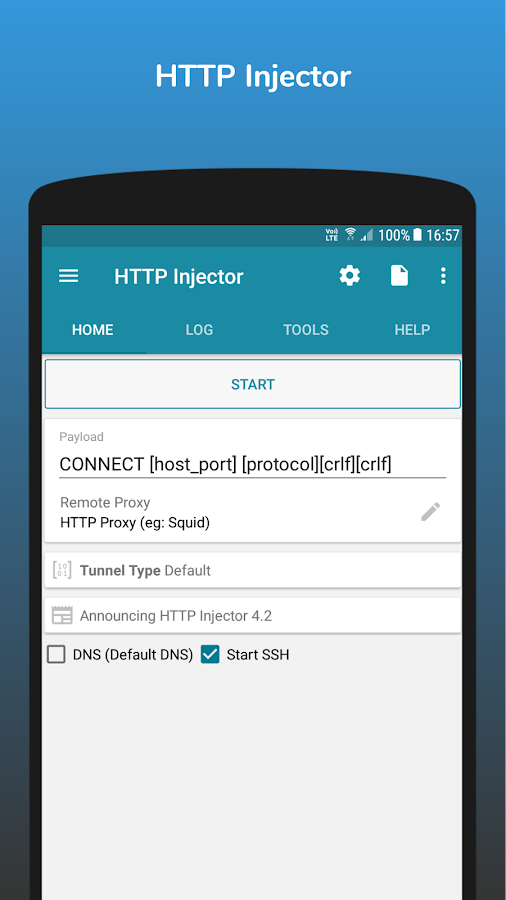
It is possible to get unlimited Internet by using an android application known as HTTP Injector. To accomplish this you need to understand the settings of Virtual Private Network(VPN), Secure Shell(SSH) and Proxy Servers with a free site offered by your Internet Service Provider, all of these settings can be performed using a mentioned android app.

   HTTP Injector
There are some few simple tricks to follow so that you can be able to access unlimited Internet on your mobile phone specifically android phone, before attempting the settings for unlimited make sure you have the following things.

-A Squid Proxy Server, this is a server which access an Internet on your behalf, all the request you made on the Internet will be trafficked on a proxy server. You can get free public proxy server from this link Free Proxy Servers. Note down IP address eg 183.52.67.11 and Port eg 8080.

-SSH server, This is a cryptographic network protocol for operating network services securely over an unsecured network. It helps to hide your internet activities in such a way your ISP will get hard to notice you. There are many websites which provide free ssh servers but the common used website is Skyssh, you should sign up to get ssh account which will involve your USERNAME, PassWord, SSH server IP address and ports.

-A free Site offered by your Internet Service Provider, Some website can be accessed free without a credit or an Internet bundle for example 0.facebook.com, freebasic.com or your ISP official website. This a real thing which provide the access to the Internet.

-A Simcard of your ISP with no credit or quota, after having fulfill all the above requirements it is a time to do the actual settings which will help to get free unlimited Internet, totally free.

first, with your phone go to the google play and search for an application known as HTTP injector or you can download via a link that has been posted on this post.

2nd step, You need to test if a free website you have can be used to get a free unlimited Internet, this is because not all free sites offered by your ISP will be used for free internet. You should use the same application http injector  to test your website. To do this follow these steps.
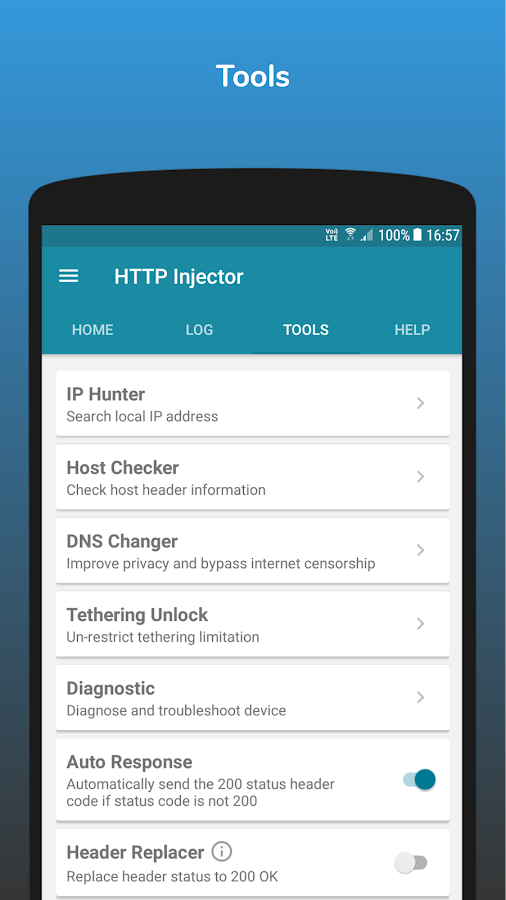
Go to the place written as TOOLS click there and you will see various tools that have different purposes, for the sake of our goal you will select a tool known Host Checker.
After Clicking, you will enter a free site offered by your ISP eg www.facebook.com and then select a method like GET, HEAD etc here we use HEAD method, then fill a proxy server that you obtained earlier, then click check. if you see the code written 200 OK it implies that the site can be used for unlimited internet otherwise there is very little chance to use a site for this purpose.
Having completed this, stay tune for a post Part II which will show the configurations, this will be our final step.